Filters and Navigation
Discover powerful navigation and filtering capabilities that help you efficiently organize, locate, and manage your tasks. The Task Management Dashboard provides multiple filtering layers - from status-based organization to module-specific categorization - enabling you to quickly focus on exactly the work that matters most to your current priorities and workflow needs.
Top-Level Tabs
The dashboard features a dual-tab interface at the top level, providing distinct views for different aspects of task management. These primary navigation tabs offer complementary perspectives - operational task management and analytical insights - allowing you to seamlessly switch between active work coordination and performance analysis.

1. Tasks
- Primary Interface: Default landing view for all task management activities
- Core Features: Status cards, comprehensive task lists, and all operational controls
- Always Available: Remains accessible across all screen sizes and devices
- Purpose: Day-to-day task execution, status monitoring, and work coordination
2. Statistics
- Analytical View: Data-driven insights and performance visualization
- Chart Features: Interactive charts, trend analysis, and productivity metrics
- Interactive Filtering: Click on pie chart segments to filter tasks by status directly from the statistical view
- Responsive Design: Automatically hidden on screens smaller than 800px width
- Reporting Options: Weekly summaries, daily breakdowns, and progress tracking
ℹ️ Interactive Feature: The status-based pie chart in Statistics view allows direct filtering - clicking on any pie segment (Pending, In Progress, Completed, etc.) automatically filters your task list to show only tasks in that specific status, seamlessly bridging analytical insights with operational task management.
Module Tabs
Strategically positioned just above the task list, the module-based filtering system provides intelligent task organization by functional categories. These dynamic tabs serve as powerful filters that automatically group your tasks according to their source modules, enabling you to quickly isolate work from specific business areas and maintain focus on particular operational domains.
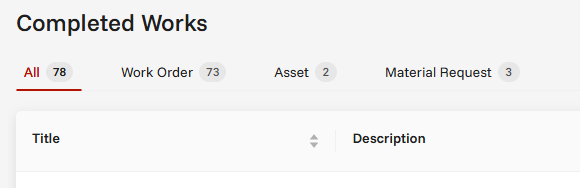
All Tab
- Comprehensive View: Displays tasks from all available modules in a unified list, providing a complete overview of your entire workload across all functional areas
- Aggregate Counter: Shows the total count of all tasks regardless of their source module, giving you instant visibility into your complete task inventory
- Universal Access: Serves as the default landing view where you can see all work items before applying specific module filters
- Example Display:
All [78]- where the number represents your complete task count across all modules
Specific Module Tabs
- Functional Grouping: Tasks are intelligently organized and filtered by their originating module's function code, allowing you to focus on specific business processes and operational areas
- Module-Specific Counters: Each tab displays the precise number of tasks belonging to that particular module, enabling quick workload assessment across different functional domains
- Targeted Workflow: Clicking a module tab instantly filters your view to show only tasks from that specific area, streamlining focused work sessions within particular business functions
- Dynamic Examples:
Document [73]- Opinion, control, approval and read-confirmation tasksNonconformity [12]- CAPA stage and action tasksRisk [3]- Assessment, control and verification tasks
ℹ️ Special Case: When all tasks belong to a single module, the "All" tab is automatically hidden from the interface. This intelligent behavior streamlines the user experience by removing redundant navigation options when module-specific filtering would provide no additional value.
Tab Features
- Counter Display: Each tab dynamically shows the exact number of tasks in brackets next to the module name, providing instant visibility into workload distribution across different functional areas
- Active Indicator: The currently selected tab is visually highlighted with distinct styling, making it immediately clear which filter is currently applied to your view
- Auto Navigation: When switching between tabs, the system automatically resets pagination to page 1, ensuring you always start viewing from the beginning of the newly filtered task list
- Dynamic Updates: Tab counters refresh automatically in real-time as task statuses change, move between modules, or new tasks are created, maintaining accurate counts without requiring page refresh
Status Filtering
The dashboard provides multiple intuitive methods to filter tasks by their current status, allowing you to focus on specific workflow stages:
Method 1: Status Cards (Tasks Tab)
- Location: Available in the Tasks tab view
- Usage: Click on any status card (Pending, In Progress, Completed, Information, Cancelled) to filter tasks
- Visual Feedback: Selected card becomes highlighted, and the task list updates to show only tasks in that status
- Always Filtered: One status filter is always active - you can switch between different statuses but cannot show all statuses simultaneously
Method 2: Interactive Pie Chart (Statistics Tab)
- Location: Available in the Statistics tab (screens ≥800px width)
- Usage: Click directly on any pie chart segment representing a task status
- Immediate Filtering: System automatically switches to Tasks tab and applies the selected status filter
- Analytical Bridge: Seamlessly connects statistical insights with operational task management
💡 Tip: Both filtering methods work in conjunction with module filters, allowing you to create precise combinations like "In Progress Work Orders" or "Pending Material Requests" for highly targeted task views.
Navigation Tips
Quick Access
- Recent Tasks: The dashboard automatically prioritizes and displays the most recently modified tasks at the top of your list, ensuring you can quickly continue working on items you've recently interacted with
- Priority (Overdue) Tasks: Overdue tasks are visually distinguished with red highlighting, providing immediate visual alerts for items that require urgent attention and are past their due dates
- Upcoming Tasks: Tasks approaching their deadlines are marked with yellow indicators, giving you early warning to plan and prioritize work that will soon become time-critical