View Types
The Task Management Dashboard provides two distinct viewing modes to display your tasks, each designed for different use cases and device types. These view types offer flexibility in how you interact with your work, allowing you to choose the optimal display format based on your current situation, device capabilities, and personal preferences. Whether you need detailed data analysis or quick visual scanning, there's a view type tailored to your workflow.
1. Table View
Table View presents your tasks in a structured, spreadsheet-like format with organized rows and columns. This view is designed for users who need to see comprehensive task information at a glance and prefer a data-dense interface. Each task occupies one row, with all relevant details displayed across multiple columns, making it easy to compare tasks and identify patterns in your workload.
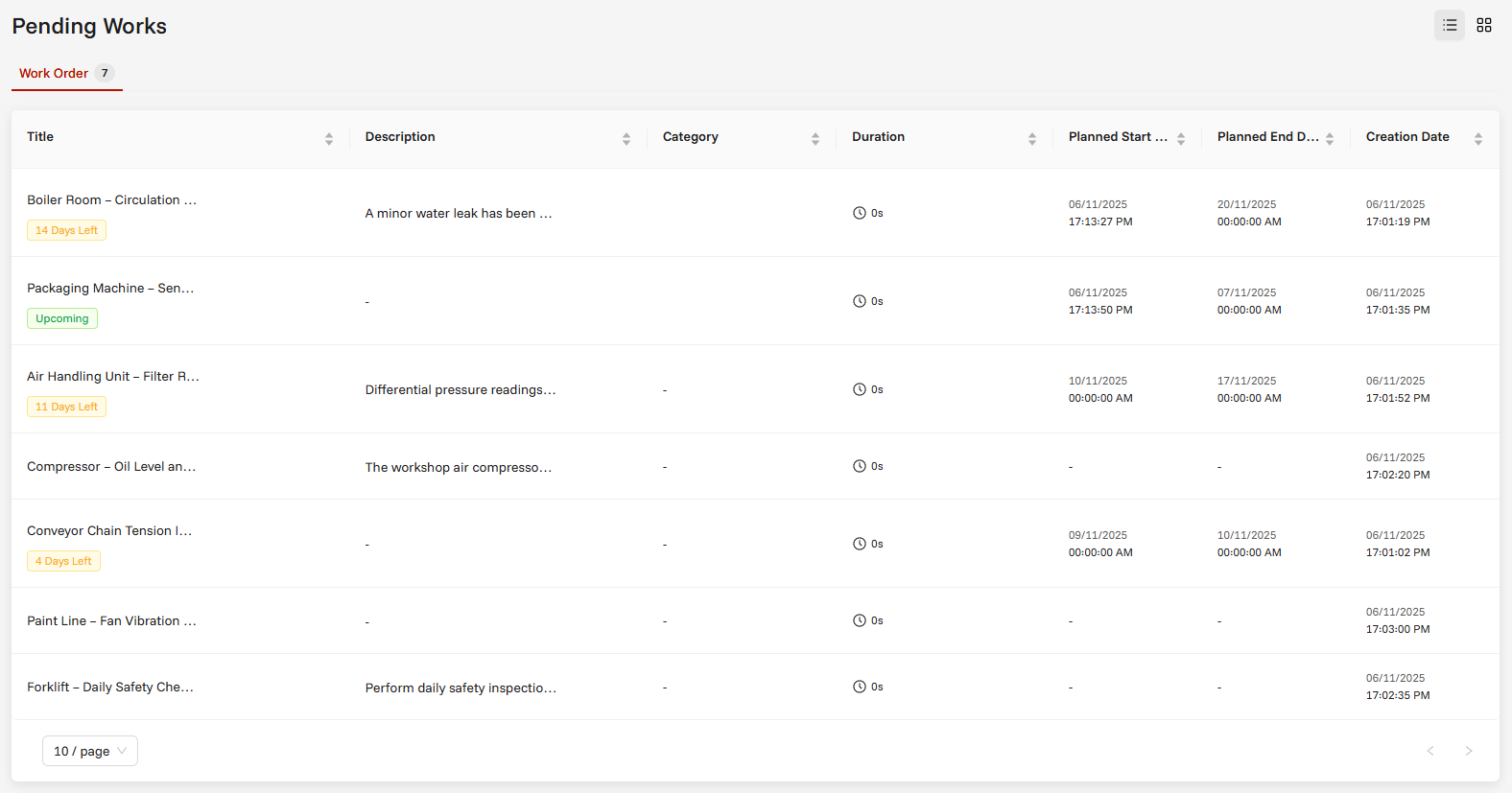
When to Use:
- ✅ When you have many tasks
- ✅ When you need to compare detailed information
- ✅ When working on a computer screen
Features:
- Compact and detailed information presentation
- Organized data display in columns
- Sorting and filtering support
Table Columns
| Column | Description |
|---|---|
| Title | Task name/description |
| Category | Task category |
| Created Date | Date when the task was entered into the system |
| Planned Start | Planned start date of the task |
| Planned End | Planned end date of the task |
| Total Duration | Total time spent on the task |
| Status Label | 🔴 Overdue 🟢 Upcoming 🟡 X days left status badges |
| Actions | Quick access buttons |
2. Card View
Card View displays your tasks as individual, visually appealing cards arranged in a grid layout. This view emphasizes visual presentation and user-friendly interaction, making it ideal for quick scanning and mobile usage. Each task is presented as a separate card with essential information prominently displayed, creating an intuitive and engaging interface that's easy to navigate.
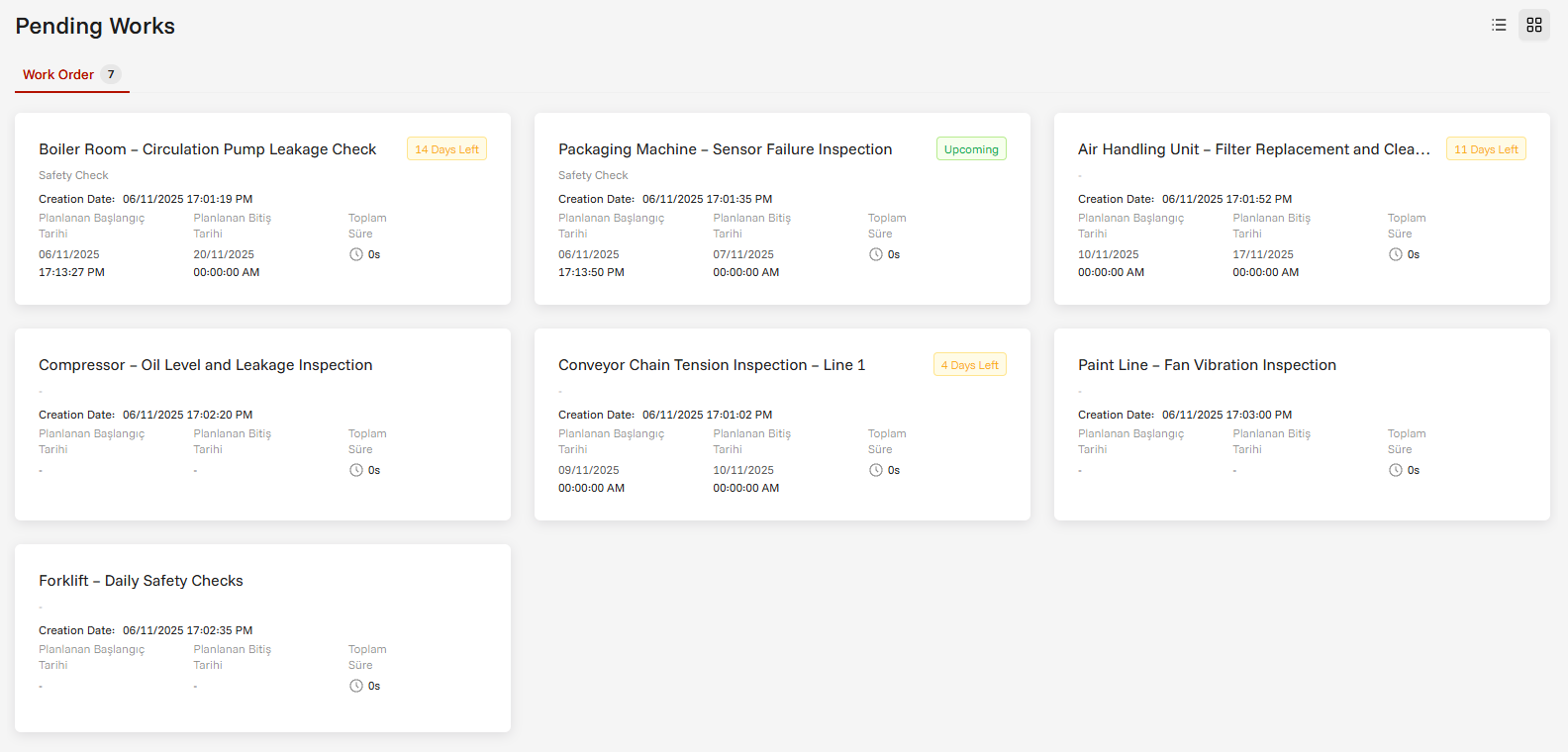
When to Use:
- ✅ When using mobile or tablet
- ✅ When you want a visually richer interface
- ✅ When you have few tasks
Features:
- Visually rich, user-friendly interface
- Optimized display on mobile devices
- Detail display on hover
- Separate card for each task
Card Content
Each card contains the following information:
| Element | Description |
|---|---|
| Task Title | Main task name/description with status badge |
| Category | Task category or module type |
| Creation Date | When the task was created |
| Planned Dates | Start and end date schedule |
| Duration | Total and elapsed time (for active tasks) |
Switching Between Views
You can easily switch between Table View and Card View using the view toggle icons located in the upper right area of the screen. These view switching controls allow you to instantly change how your tasks are displayed without losing your current filters or selections.
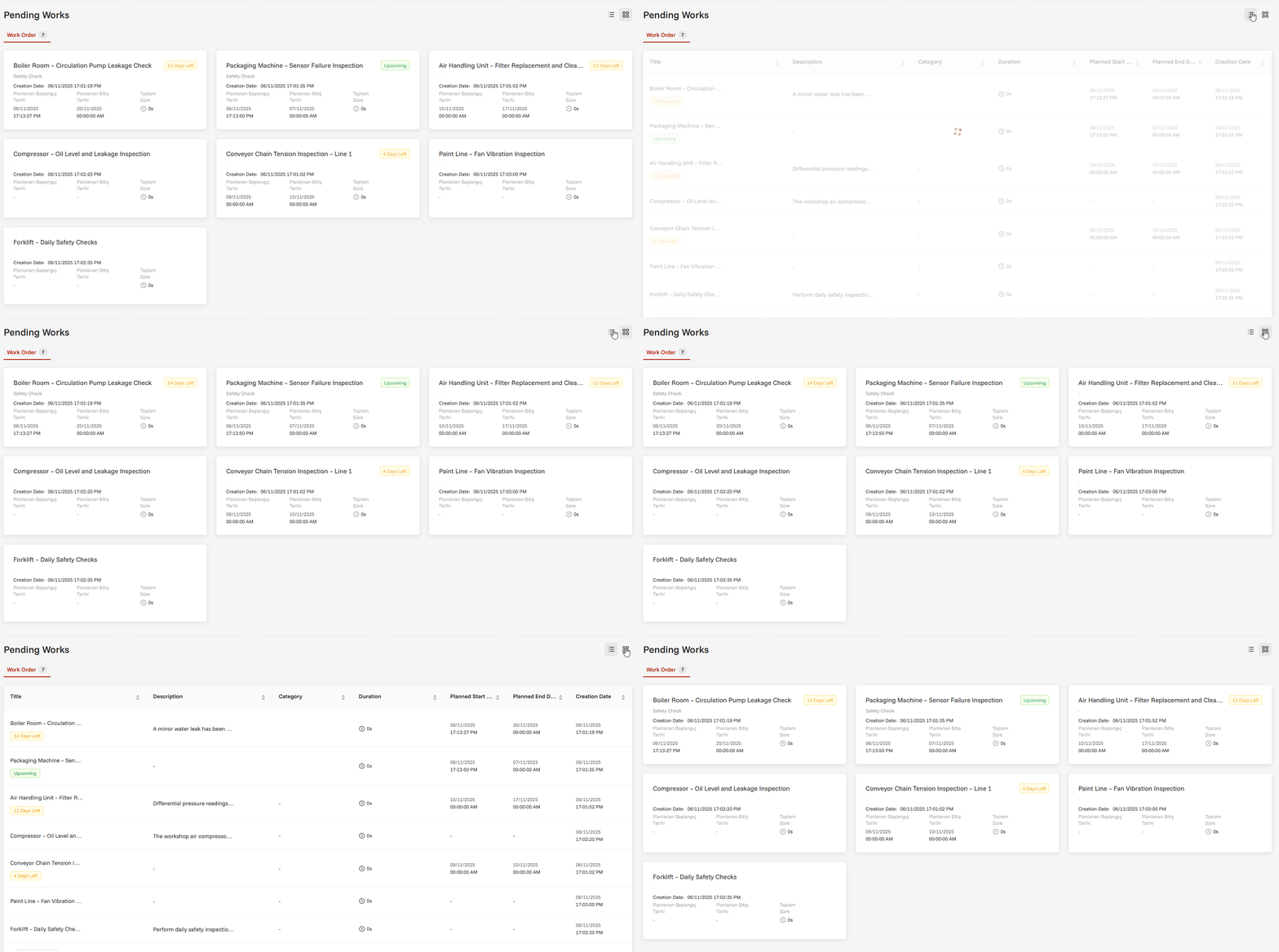
The two view options are:
- Table Icon: Switches to table view for detailed, compact information display
- Grid Icon: Switches to card view for visual, user-friendly interface
How to Switch:
- Locate the view toggle icons in the upper right area of the dashboard
- Click on the desired view icon (Table or Grid)
- The display instantly changes to your selected view type
- Your current filters and selections remain active
Responsive Behavior
| Screen Size | Behavior |
|---|---|
| Phone (<600px) | Automatic card view |
| Tablet (600px - 800px) | Pending: Card, Others: Selectable |
| Computer (≥800px) | All features active |
💡 Tip: Automatically switches to card view on small screens (<600px).
On medium screens (<800px), only card view is available for pending tasks.