Dashboard Overview
Welcome! This guide will help you effectively use the Task Management Dashboard feature.
What is Task Management Dashboard?
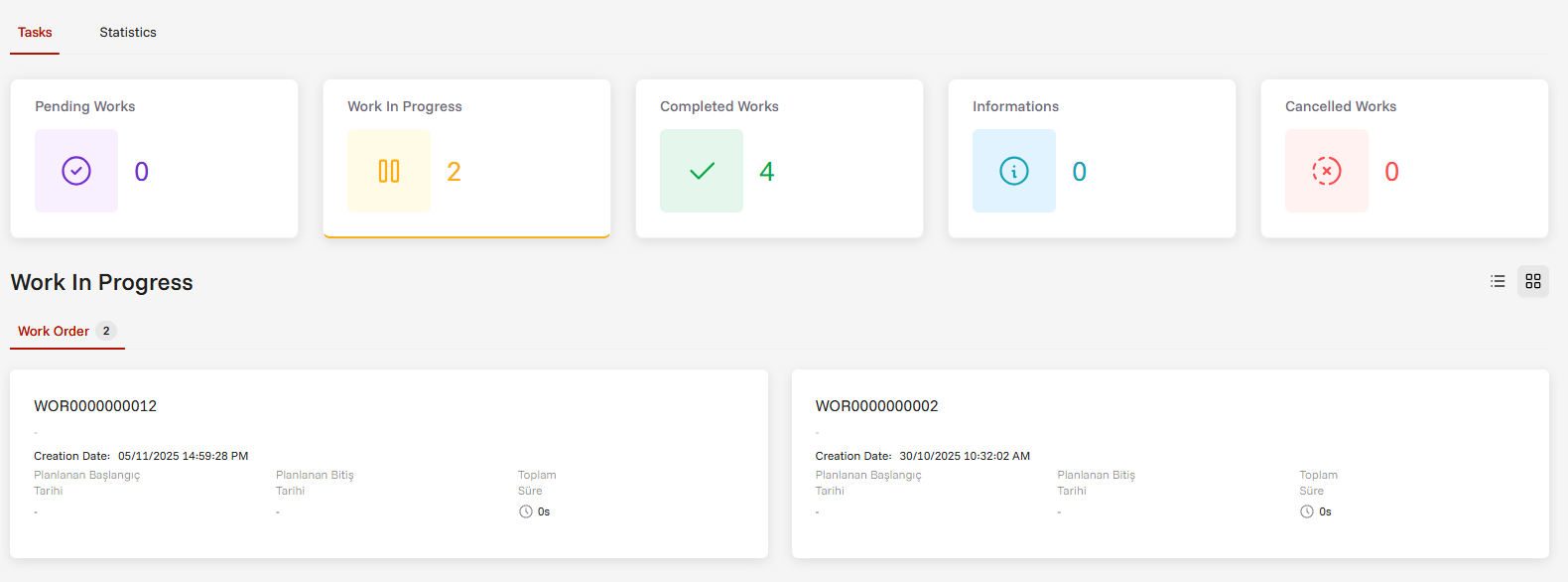
The Task Management Dashboard is a centralized screen where you can track, manage, and report all assigned tasks from a single location. You can view your tasks by status, module, and time, and perform various operations on them.
Key Features
| Feature | Description |
|---|---|
| 📋 Task Tracking | View pending, in-progress, completed, and cancelled tasks |
| 📊 Visual Statistics | See your task statuses at a glance with colorful charts and cards |
| ⏱️ Real-time Duration | Track time spent on ongoing tasks in real-time |
| 💰 Cost Tracking | Automatically calculate total costs of tasks |
| 📱 Multi-device Access | Use from computer, tablet, or phone |
| 🔍 Advanced Filtering | Quickly filter and search by modules and status |
Getting Started
- Access the Dashboard: This dashboard is the default landing page when the application opens. You can also access it by clicking the "Home" link in the main menu or navigating to Task Management > Dashboard
- Understand Status Cards: The colored cards at the top show your task summary
- Choose Your View: Select between Table view (detailed) or Card view (visual)
- Filter Tasks: Use module tabs to filter tasks by specific modules
- Start Working: Click on tasks to begin, pause, or complete them
What's Next?
Explore the detailed guides for each aspect of the dashboard:
- Task Summary Cards - Understanding status indicators
- View Types - Table vs Card views
- Task Operations - How to work with tasks
- Filters and Navigation - Finding the right tasks
- Statistics - Analyzing your performance
- Tips and Best Practices - Expert recommendations