Task Operations
The Task Management Dashboard provides a comprehensive set of operations that you can perform on your tasks. The available actions dynamically change based on the current status of each task, ensuring that only relevant and logical operations are presented to you. This context-sensitive approach prevents errors and guides you through the proper workflow from task creation to completion.
Pending and In-Progress Tasks Operations
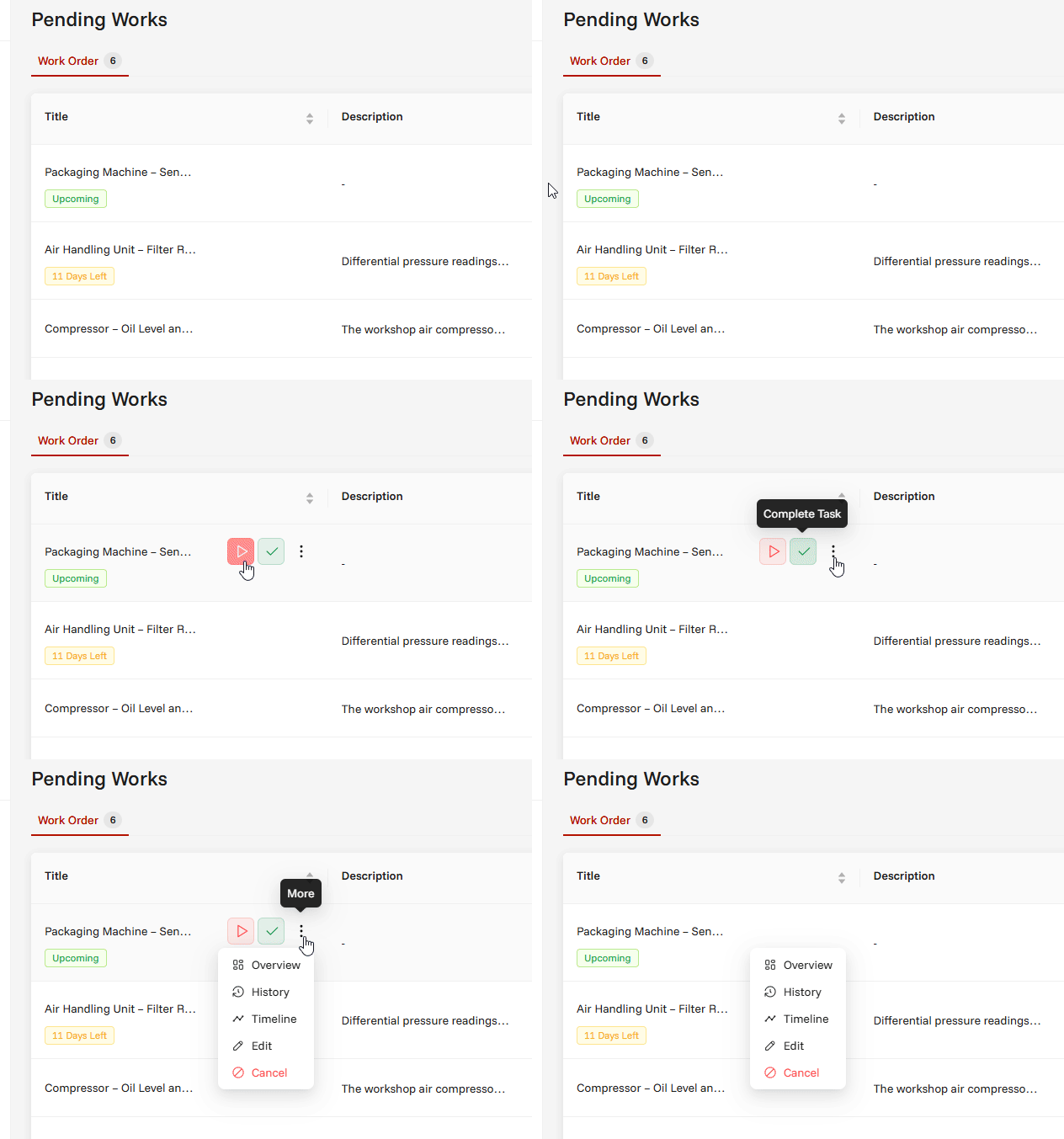
Each task row in your dashboard includes an action menu that provides quick access to all available operations. You can access this menu by locating the three-dot menu icon (⋮) at the rightmost end of each task row. When you click on this icon, a dropdown menu appears with all the operations you can perform on that specific task.
The same action menu is also available in Card View, providing identical functionality and operations regardless of which view type you're using.
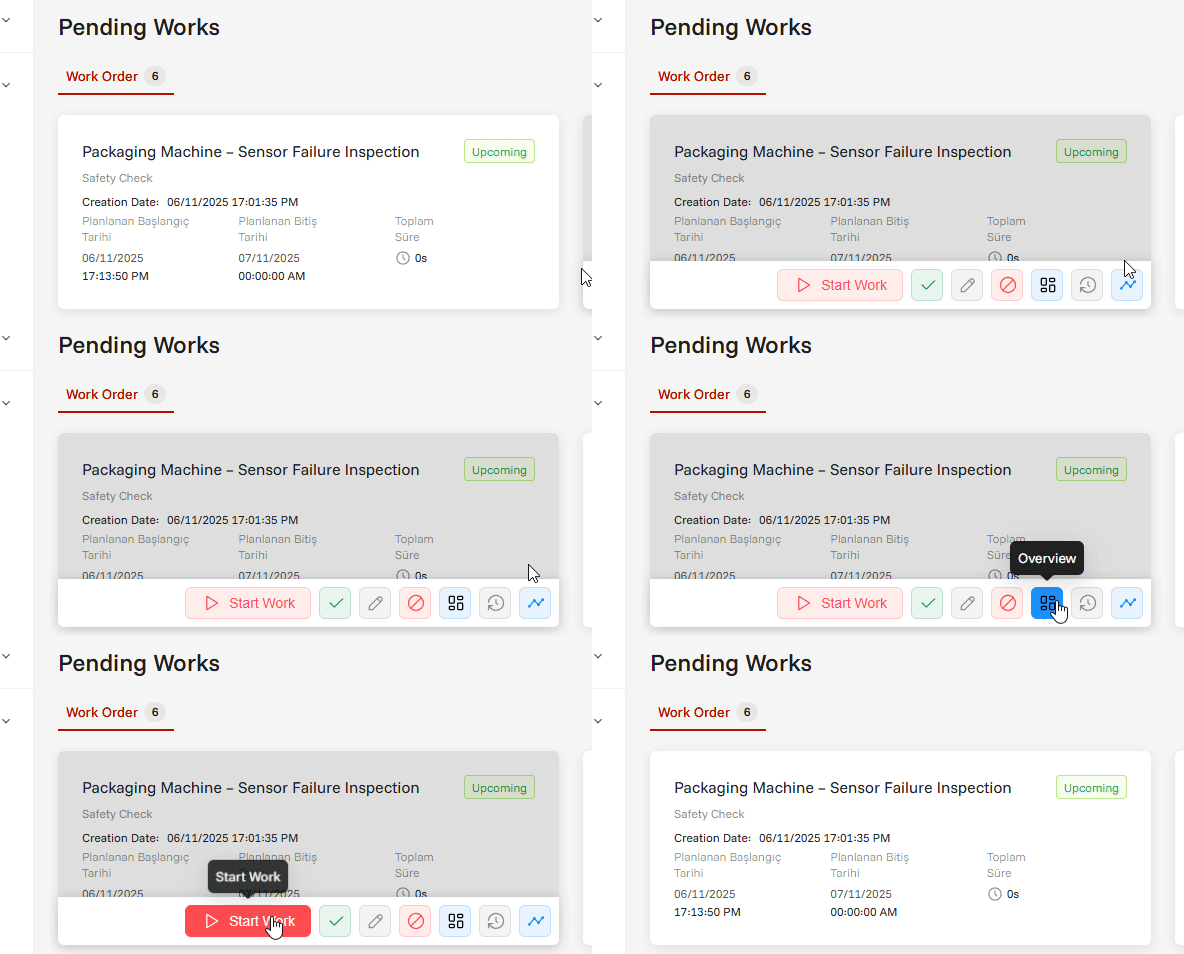
Available Operations
From this action menu, you can perform the following operations:
1. Start Work
⚠️ Note: Start Work operation is only available if there is no ongoing work record for the task.
- Function: Initiates work on the selected task and begins time tracking. The behavior depends on the task's current status:
- If task is Pending: Task status changes to "In Progress", a new work record is created, and the timer starts. After this operation, you'll notice the status card numbers change on the dashboard, and the task moves to the In Progress tasks section.
- If task is already In Progress: Task status remains unchanged, but a new work record is created to continue tracking time
- Modal: Asks you to enter start information (defaults to current date and time)
- Result: Work record created and timer activated for time tracking. An active counter displays the real-time work duration, continuously updating to show the elapsed time since work started.
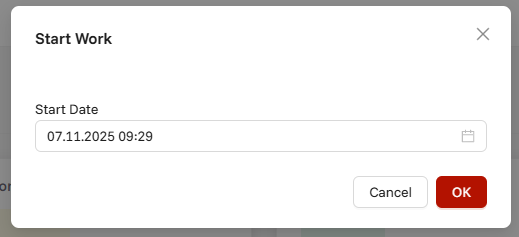
Start Modal Fields:
- Start date and time
- Additional notes (optional)
2. Pause Work
⚠️ Note: Pause Work operation is only available for tasks that have an ongoing work record.
- Function: Temporarily pauses active work on a task and finalizes the current work session. This operation:
- Stops the currently running timer
- Pauses the existing work record (does not create a new one)
- Calculates and saves work duration, cost, and shift information
- Task status remains "In Progress" - ready to resume work later
- Modal: Asks you to enter end information (defaults to current date and time)
- Result: Current work record paused with calculated duration and cost, timer stopped, task remains available for continuation
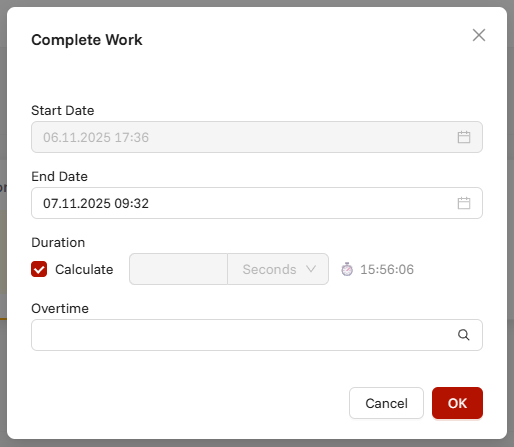
Pause Work Modal Fields:
| Field | Description | Notes |
|---|---|---|
| Start Date | Display only - shows when Start Work was initiated | Cannot be modified |
| End Date & Time | When the work session ends | Defaults to current date and time |
| Duration | Total work time for this session | Automatically calculated (End - Start). Can be manually entered by unchecking "Calculate" checkbox. Features a stopwatch icon (⏱️) next to the field indicating active time tracking |
| Overtime | Optional overtime type selection | User selects one overtime type per work record. Cost multiplier from selected overtime affects cost calculation. Important but not mandatory |
| Calculate | Checkbox to enable/disable automatic duration calculation | When checked: Duration = End - Start. When unchecked: Manual duration entry required |
ℹ️ Info: The Duration field displays an active counter that continuously calculates and shows the real-time work duration to the user while the work session is ongoing. The stopwatch icon (⏱️) next to the duration field provides a visual indicator that time tracking is active.
3. Complete Task
⚠️ Note: Complete Task operation is available for both Pending and In Progress tasks.
- Function: Finalizes and marks the task as completed when no further work will be performed on the task or when the task is already finished. The behavior depends on the task's current status:
- If task is Pending: Task status changes to "Completed" and creates at least one work record to ensure every completed task has work documentation
- If task is In Progress with active work: Automatically pauses any ongoing work session, then marks the task as completed
- Modal: Asks you to enter completion information and accomplishments
- Result: Task moves to "Completed" status, appears in completed tasks section, and is removed from active work lists
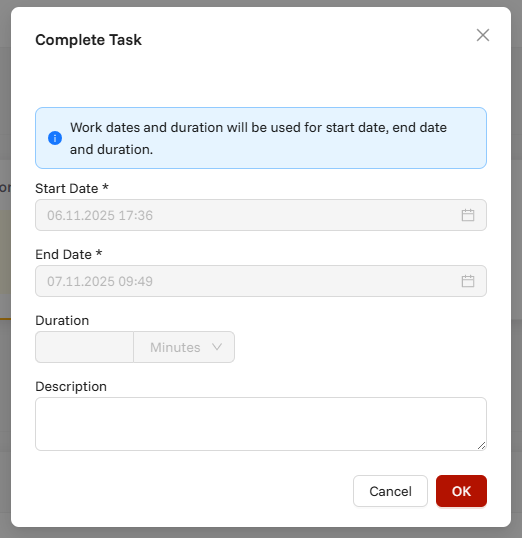
Complete Task Modal Fields:
| Field | Description | Notes |
|---|---|---|
| Start Date | When the work on the task began | For In Progress tasks: Automatically populated from the earliest work record. For Pending tasks: Must be entered by user (required) |
| End Date | When the task was completed | For In Progress tasks: Automatically populated from the latest work record. For Pending tasks: Must be entered by user (required) |
| Duration | Total work time for the task | Automatically calculated (End - Start). Can be manually entered by unchecking "Calculate" checkbox |
| Calculate | Checkbox to enable/disable automatic duration calculation | When checked: Duration = End - Start. When unchecked: Manual duration entry required |
| Description | Additional completion notes or comments | Optional field for any extra information about the completion |
4. Edit
⚠️ Note: Edit operation is only available for Pending and In Progress tasks. Completed and Cancelled tasks cannot be edited.
- Function: Allows you to modify task information and planning details. This operation enables you to:
- Update planned dates for better scheduling
- Change task category for proper classification
- Modify task description for clarity
- Task status remains unchanged after editing
- Modal: Opens edit form with current task information pre-populated
- Result: Task information updated with new values, task remains in current status
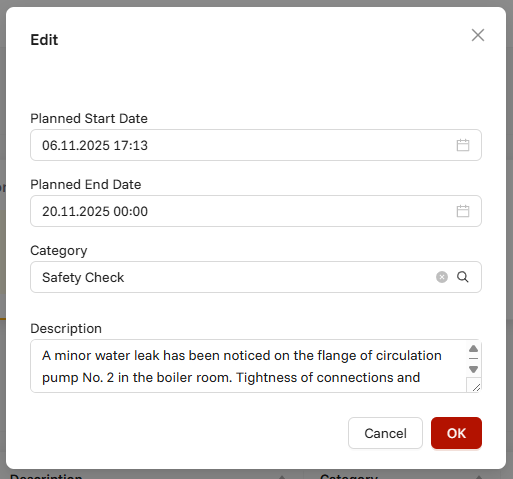
Edit Task Modal Fields:
| Field | Description | Notes |
|---|---|---|
| Planned Start Date | When the task is planned to begin | Can be modified to adjust scheduling. Does not affect actual work records |
| Planned End Date | When the task is planned to be completed | Can be modified to adjust scheduling. Must be after or equal to planned start date |
| Category | Task category for classification | Dropdown selection from available categories. Helps with filtering and reporting |
| Description | Detailed task description | Text field for task details, requirements, or additional information |
5. Cancel
⚠️ Note: Cancel operation is only available for Pending and In Progress tasks. Completed and Cancelled tasks cannot be cancelled.
- Function: Permanently cancels the task and changes its status to "Cancelled". This operation:
- If task is Pending: Task status changes directly to "Cancelled" without any work records
- If task is In Progress with active work: Automatically pauses any ongoing work session, then marks the task as cancelled
- Cannot be undone - cancelled tasks remain in the system for record keeping but cannot be reactivated
- Confirmation: Displays confirmation dialog to prevent accidental cancellation
- Result: Task moves to "Cancelled" status, appears in cancelled tasks section, and is removed from active work lists
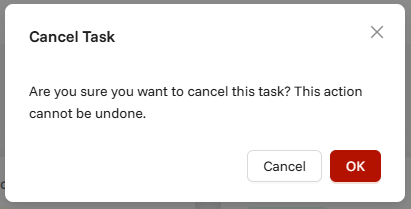
Cancel Confirmation Dialog:
- Message: "Are you sure you want to cancel this task?"
- Actions:
- Confirm: Proceeds with cancellation
- Cancel: Aborts the operation and returns to task list
6. Overview
ℹ️ Info: Overview operation is available for all task statuses and provides access to the source record that generated the task.
- Function: Redirects you to the detailed view of the source record that created this task. Every task in the system has an origin source record, and this operation allows you to:
- View source record details - Access complete information about the original record
- Understand task context - See why the task was created and what it relates to
- Access related data - View additional information, attachments, or related records
- Navigate seamlessly - Jump between task management and source module without losing context
- Navigation: Opens the source record in a new tab or redirects to the appropriate module
- Result: Displays the detailed page of the source record with all relevant information
7. History
ℹ️ Info: History operation is available for all task statuses and provides comprehensive work tracking information.
- Function: Displays detailed history of all work performed on the task and completion records if the task is finished. This operation allows you to:
- View all work sessions - See every work period with start/end times and durations
- Track completion records - View completion information for finished tasks
- Monitor total costs - See calculated costs for all work performed
- Analyze productivity - Review work patterns, overtime usage, and efficiency
- Modal: Opens comprehensive two-part detail screen with complete work history
- Result: Detailed breakdown of all task activities with cost calculations and time tracking
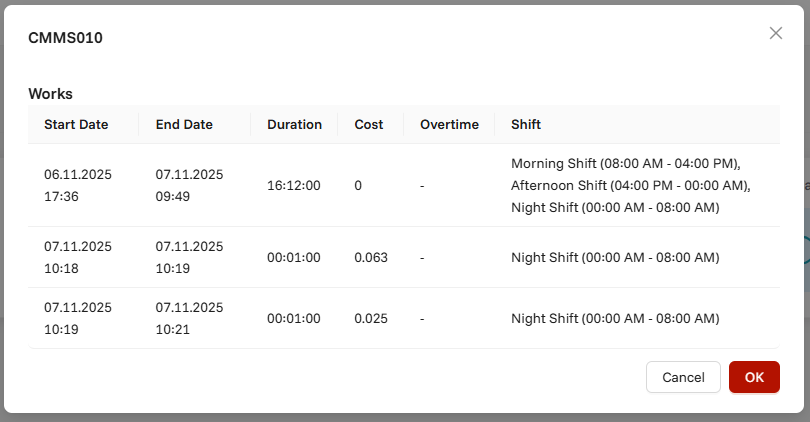
History Modal Content:
A. Work Records (Works) Displays all work sessions in table format:
| Column | Description |
|---|---|
| Start Date & Time | When each work session began |
| End Date & Time | When each work session ended |
| Duration | Total time spent in each work session |
| Cost | Calculated cost for each work session |
| Overtime Information | Overtime type and multiplier applied (if any) |
| Shift Information | Work shift details during the session |
B. Completion Records Displays completion information in table format (for completed tasks):
| Column | Description |
|---|---|
| Start Date | Overall task start date |
| End Date | Task completion date |
| Duration | Total task duration |
| Cost | Final completion cost |
Cost Summary: Both sections automatically calculate and display total costs, providing complete financial tracking for the task.
ℹ️ Cost Calculation Formula: Work Duration (in hours) × Personnel Hourly Rate × Overtime Multiplier (if applicable)
8. Timeline
ℹ️ Info: Timeline operation is available for all task statuses and provides chronological event tracking.
- Function: Displays a comprehensive chronological timeline of all events that occurred during the task's lifecycle. This operation allows you to:
- Track event sequence - See all events in order from task creation to current status
- Monitor task progression - Understand how the task evolved over time
- Modal: Opens interactive timeline view with event details and timestamps
- Result: Visual chronological representation of all task-related activities and status changes
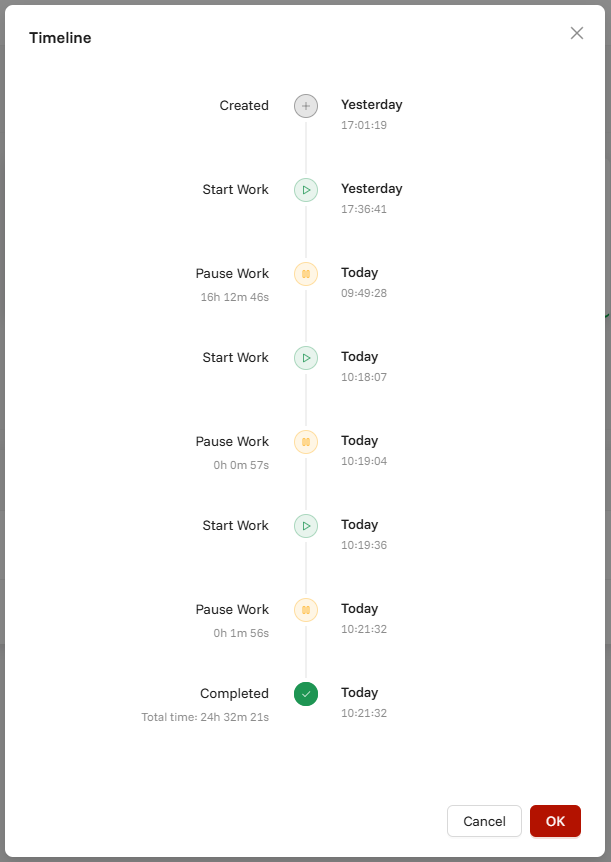
Timeline Event Types:
| Event Type | Description | Information Displayed |
|---|---|---|
| Task Creation | Initial task creation in the system | Creation date, creator, initial status |
| Work Start | Beginning of work sessions | Start time, user who started work |
| Work Pause | Pausing of active work sessions | Pause time, duration worked, user |
| Work Completion | Completion of work sessions | End time, total duration, cost calculated |
| Task Completion | Final task completion | Completion date, final status, completing user |
| Task Edits | Modifications to task information | Edit time, changed fields, editing user |
| Status Changes | Task status transitions | Previous status, new status, change time |
| Cancellation | Task cancellation events | Cancellation date, reason (if provided), user |
Performance Note: Virtual scrolling is automatically used if there are more than 60 events to ensure smooth performance.
Completed and Cancelled Tasks Operations
For tasks in these statuses, only viewing operations are available:
- 📜 History: View work records
- 🕒 Timeline: View event history
Quick Actions Tips
- Action Menu Access: Click the three-dot menu (⋮) at the end of each task row to access all operations
- Context-Sensitive Operations: Available operations change based on task status - only relevant actions are shown
- Status Dependencies:
- Start Work: Only available if no ongoing work record exists
- Pause Work: Only available for tasks with active work sessions
- Edit/Cancel: Available only for Pending and In Progress tasks
- Modal Navigation: Most operations open modals with pre-filled current information for easy editing
- Cost Tracking: All work sessions automatically calculate costs using: Duration (hours) × Hourly Rate × Overtime Multiplier
- Timer Features: Duration fields show active counters with stopwatch icons (⏱️) during ongoing work sessions
⚠️ Important: Some operations may not be available depending on your permissions and task status.